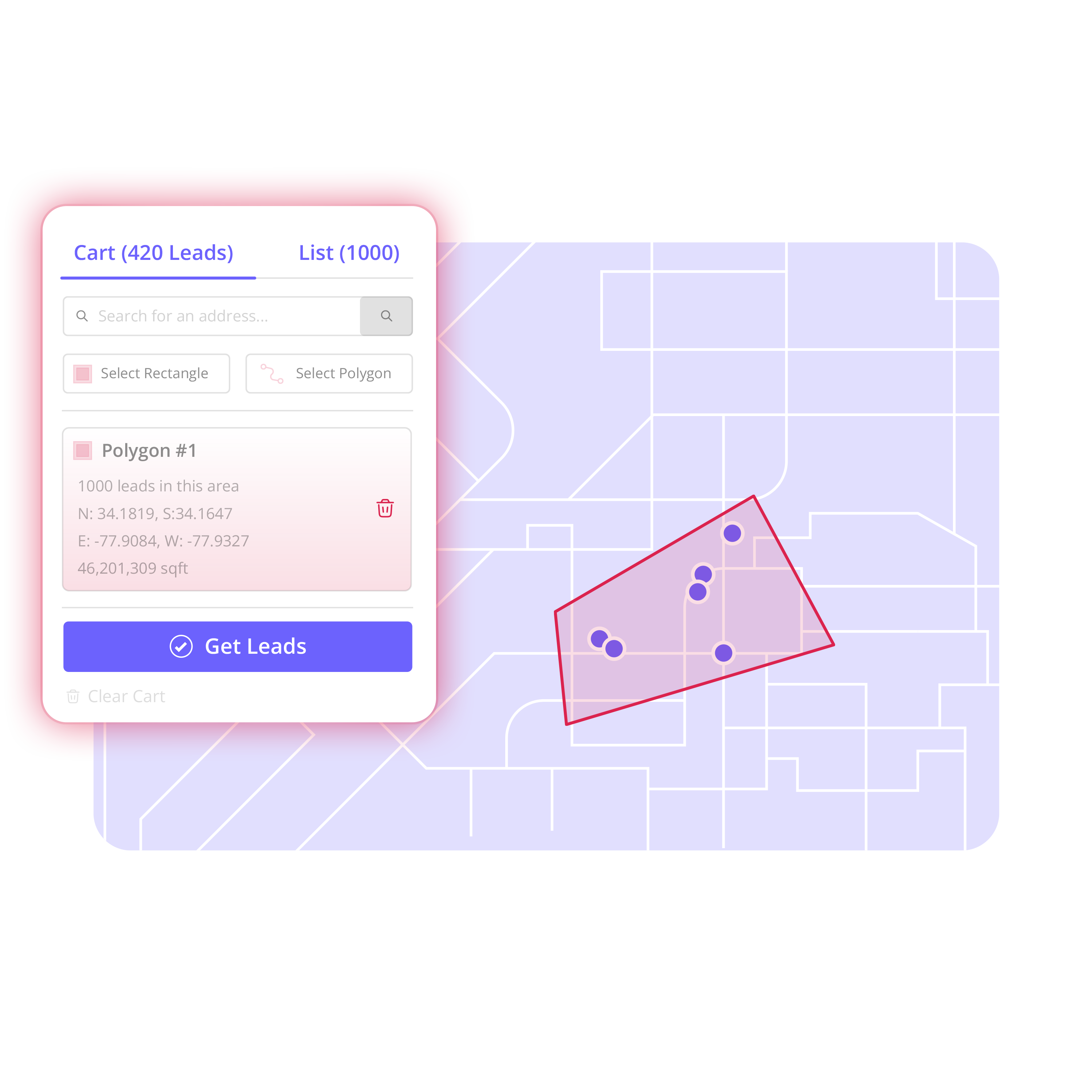
You add properties from a territory to Contacts by drawing the area, confirming Get Leads, and saving every property inside as a tagged audience of property contacts.
Territory contacts start as homeowner records pulled from the map—not pasted spreadsheets. Once properties land in Contacts, you can organize, enrich, track, and export them. That handoff is the bridge between drawing an area and running outreach in map-based prospecting.
How to do it
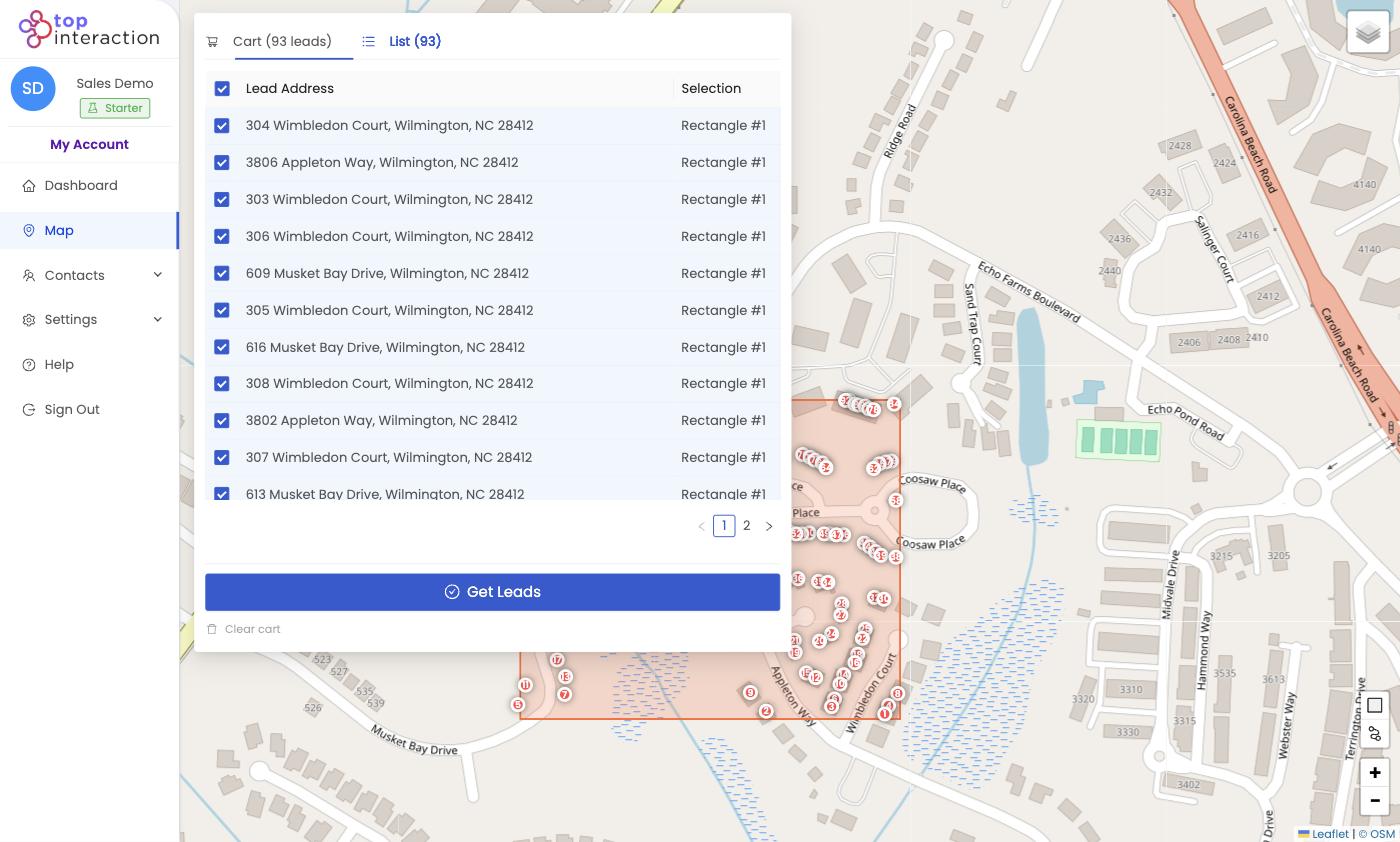
- On the Map, draw a rectangle or polygon around the properties you want.
- Open the List tab and uncheck any addresses you don’t want to add.
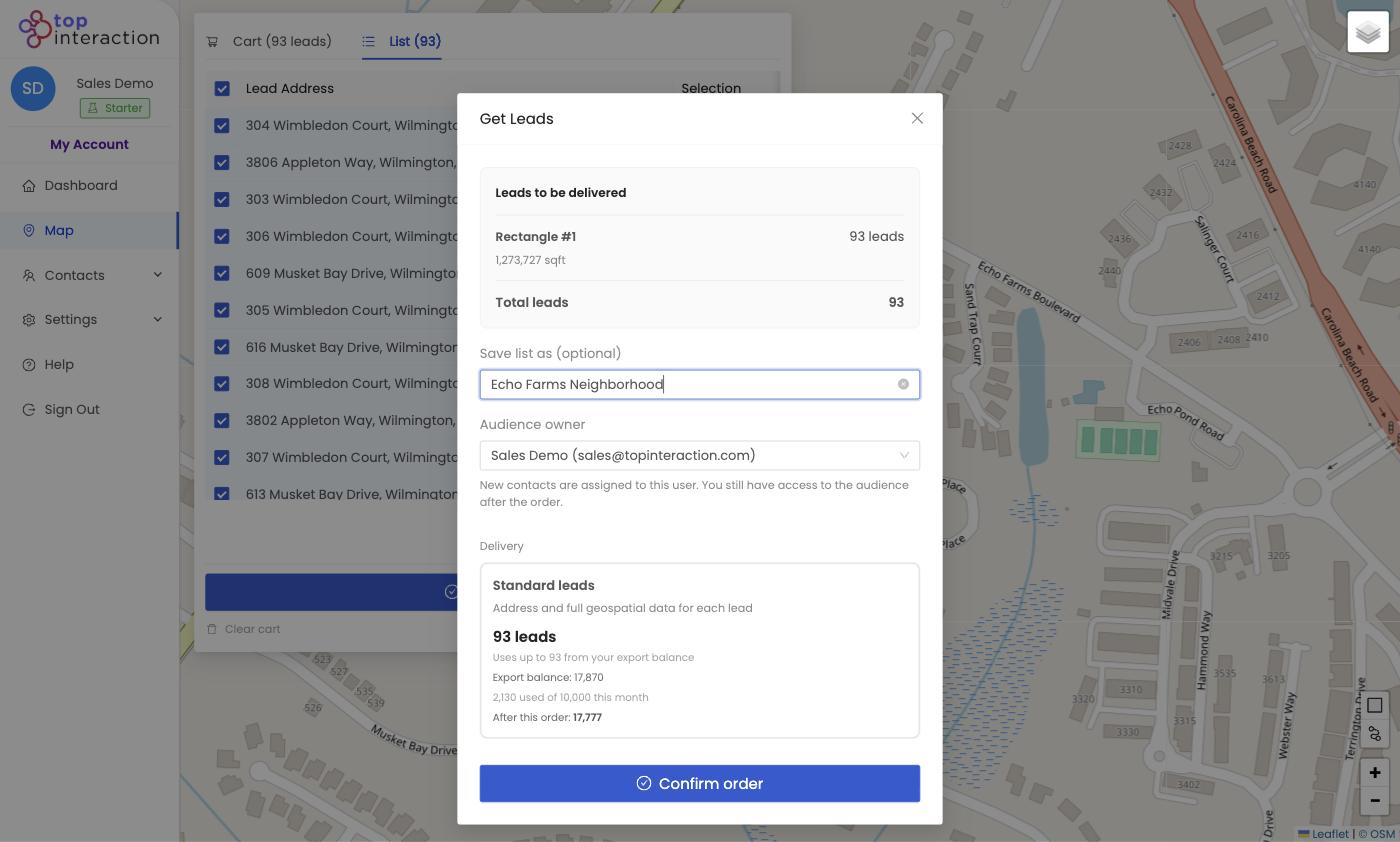
- Click Get Leads and name the list so it’s easy to find later.
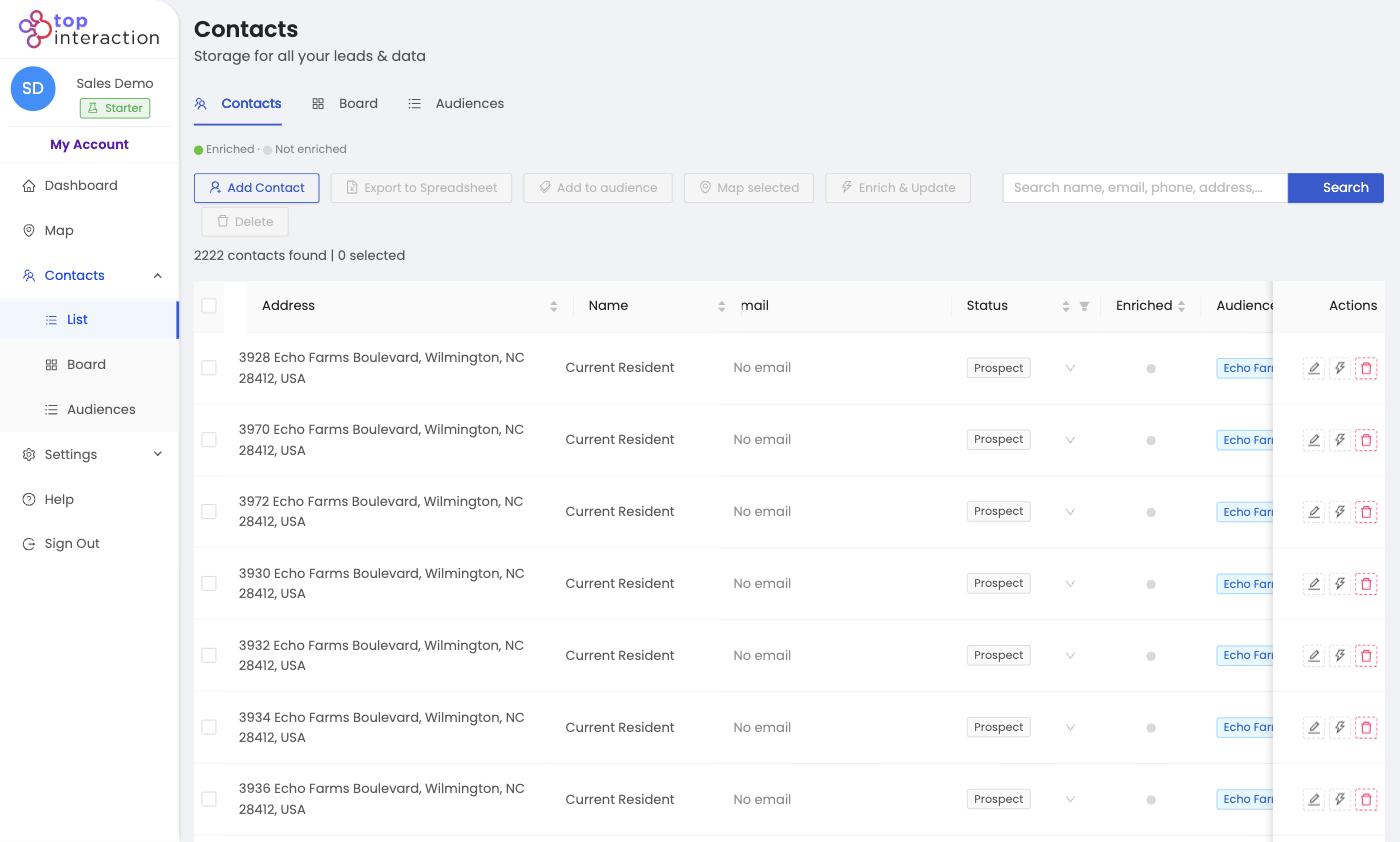
- Click Confirm order. The properties are added to Contacts, tagged to that audience.
- Open Contacts → List to see them, or Audiences to see the saved group.
See it in action
FAQ
Are map properties and contacts the same thing?
Once you pull them, yes. Before that they’re just previewed on the map; Get Leads is what turns them into saved contacts.
Can I add more properties to an existing list later?
Yes — pull another area and give it the same audience name, or add contacts to an audience from the Contacts toolbar.
What if some addresses are duplicates?
Territory dedupes addresses within a pull, so you won’t get the same property twice from one selection.