Short answer
You export contacts to CSV by selecting the audience or filtered rows, choosing Export to Spreadsheet, and downloading a file ready for Excel, Sheets, or CRM import.
CSV contact export is how a Territory list leaves the app. Filter first, then export prospect list rows so CRM import stays clean. That keeps campaign tools in sync with the same geographic list you built using build homeowner contact lists from a map.
How to do it
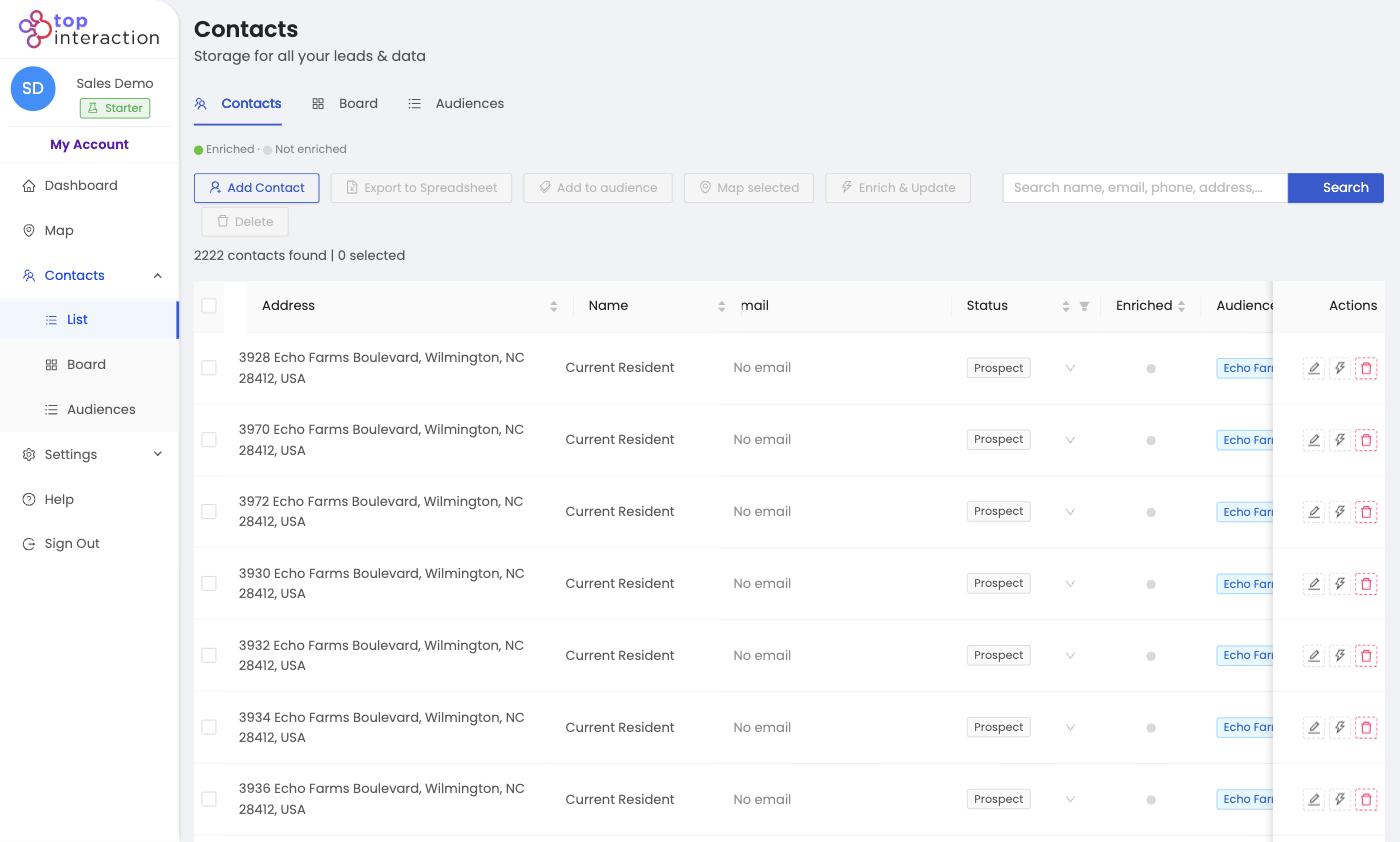
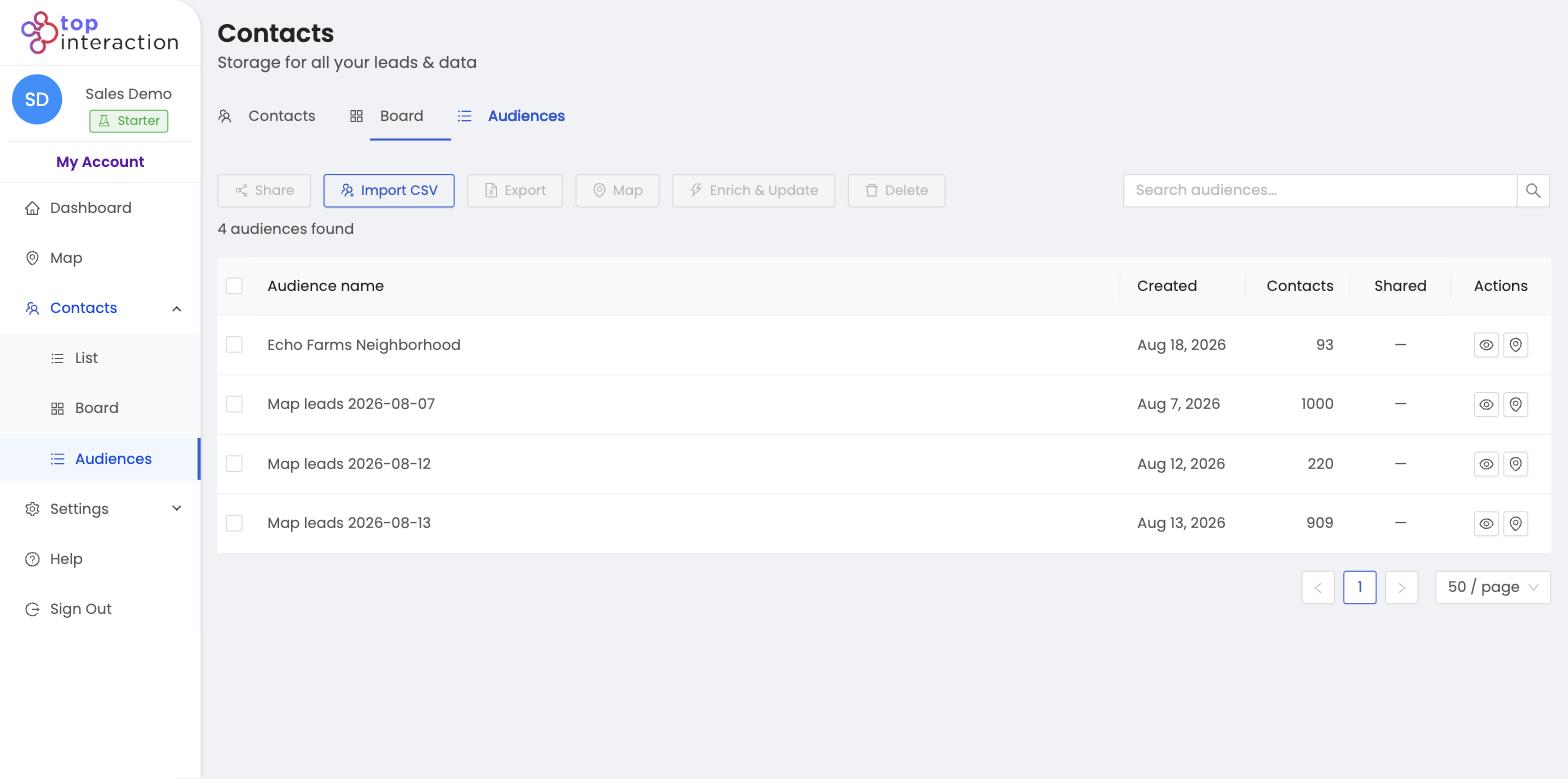
- Go to Contacts → List and filter/select the contacts you want — or open a saved Audience.
- Click Export to Spreadsheet in the toolbar.
- Territory generates a CSV with each contact’s address and available fields.
- Open it in Excel/Sheets, or import it into your mailer or CRM.
See it in action
FAQ
Can I export just part of a list?
Yes — filter or tick specific rows in List View first, then Export to Spreadsheet exports only those.
What columns are included?
Address and the fields on each contact, including any owner/contact details you’ve enriched.
Is exporting the same as enriching?
No — export downloads what you already have. Enrich first if you want owner details in the file.